
Scheduled Job - Database
Overview
This section shows how to create the database table for the Scheduled Job application.
Steps
Database Table
Navigate to the
Database Perspective.In the
Statements Viewenter the following script:sqlcreate table LOG_EVENTS ( LOG_ID integer primary key auto_increment, LOG_SEVERITY varchar(16), LOG_MESSAGE varchar(120), LOG_TIMESTAMP timestamp );Press the
Runicon to execute the SQL script.Keyboard Shortcut
Press ++ctrl+x++ for Windows, ++cmd+x++ for macOS to execute the SQL script.
Note: You can execute all or part of the SQL scripts in the
SQL Viewby making a selection and pressing theRunicon or the keyboard shortcut.Press the
Refreshbutton to see theLOG_EVENTStable.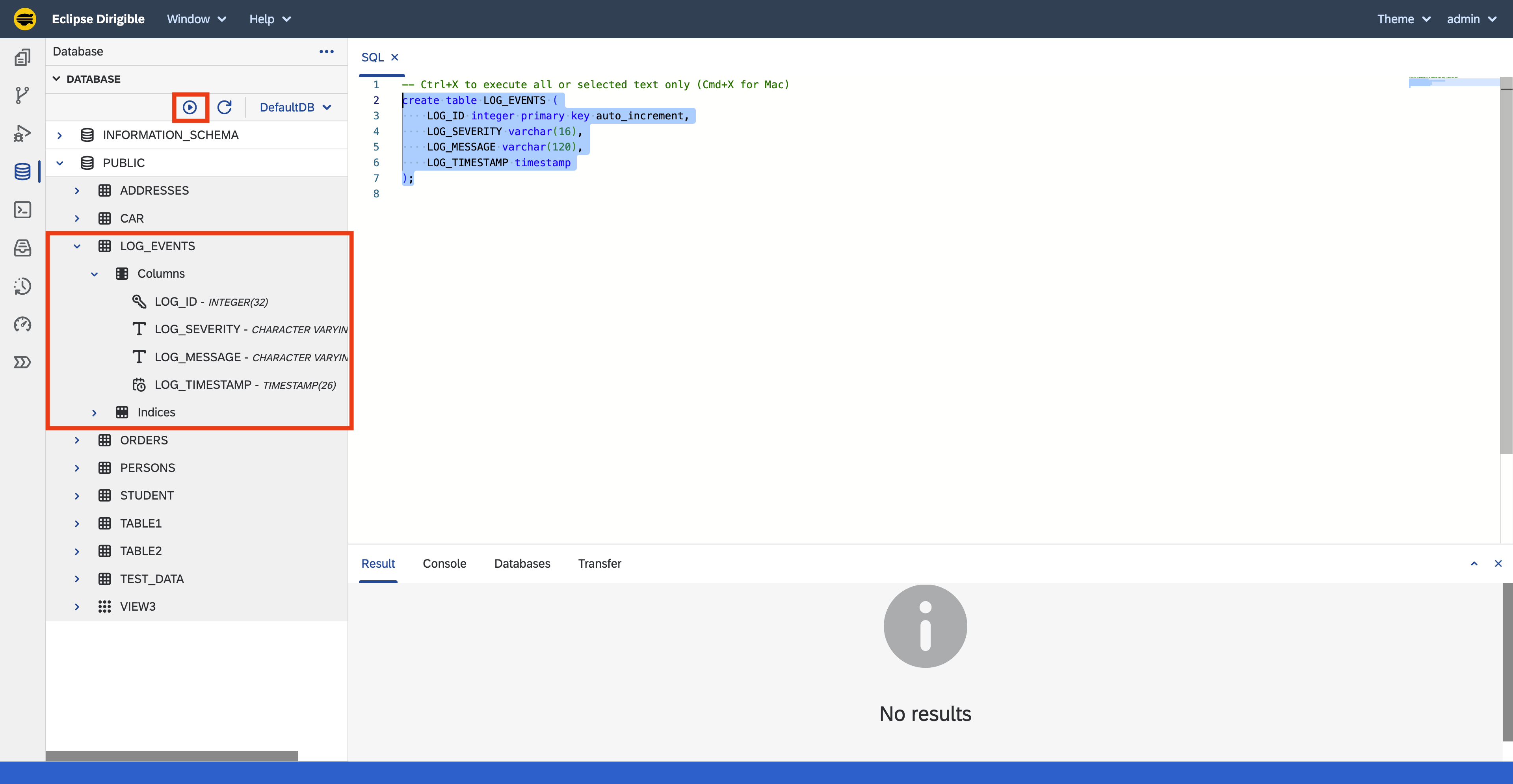
Table Content
Right click on the
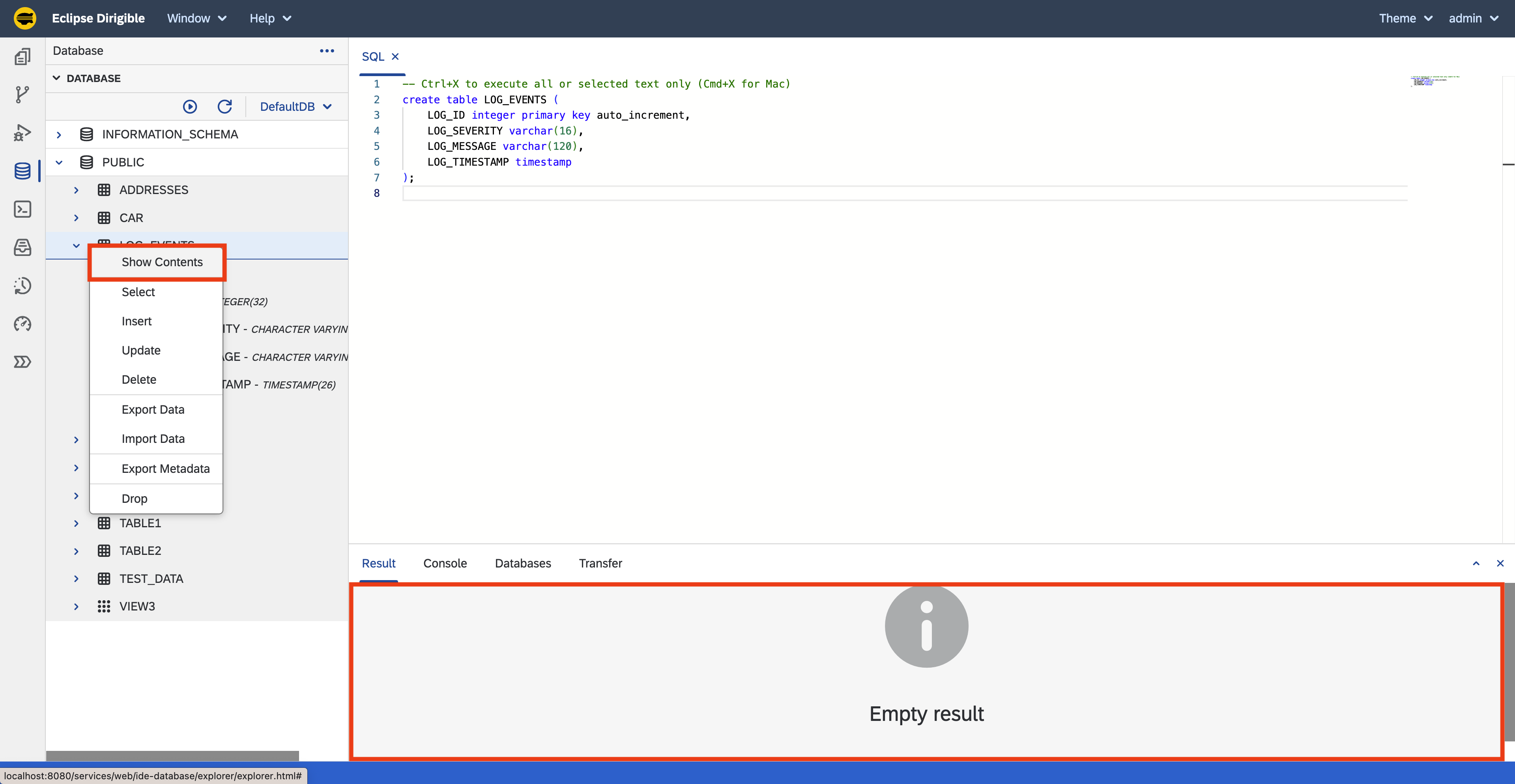
LOG_EVENTStable and select Show Contents.The table data would be displayed in the
Result View.As the table is empty, there should be no data:
Next Steps
Section Completed
After completing the steps in this tutorial, you would:
- Have database table named
LOG_EVENTS. - Be familiar with the
Database Perspective, theStatements Viewand theResult View.
Continue to the Job Handler section to create a Job Handler, that would be executed by the Scheduled Job.
Note: The complete content of the Scheduled Job tutorial is available at: https://github.com/dirigiblelabs/tutorial-scheduled-job-project:::